Turn a Supplier Catalog Into a Checked SKU Spreadsheet
Supplier catalogs rarely arrive in the shape your store needs. One supplier lists sizes in a dropdown, another puts colors in the product title, and a third shows prices in a different currency. Before you touch your store, you need a table where every row is one sellable variant and every value can be traced back to where it came from.
This guide shows how to build that table from a small batch of supplier products, check it, and mark what is still unknown. The output is a reviewable spreadsheet. It is preparation work. Nothing gets published to your store.
What you’ll produce
A spreadsheet with one row per supplier variant and these columns:
| Column | What goes in it |
|---|---|
| Supplier SKU | The supplier’s code, copied exactly |
| Product name | As shown on the supplier page |
| Variant | Option name and value, such as Size: M |
| Price | A plain number with no currency symbol |
| Currency | A three-letter code, such as USD or EUR |
| Source URL | The page the row was taken from |
| Missing fields | Which required values the source didn’t show |
Keep price and currency in separate columns. Shopify’s CSV documentation, for example, expects price as a number with no currency symbol (such as 9.99). The documentation also treats SKU as a per-variant field and puts each variant on its own row. Storing values that way now saves a cleanup pass later, whichever store platform you use.
A real supplier-page check
This screenshot and the table values were captured from Adafruit’s public catalog on September 26, 2026. This is a three-page spot check assembled for this guide; a Dassi extraction run has not been recorded.
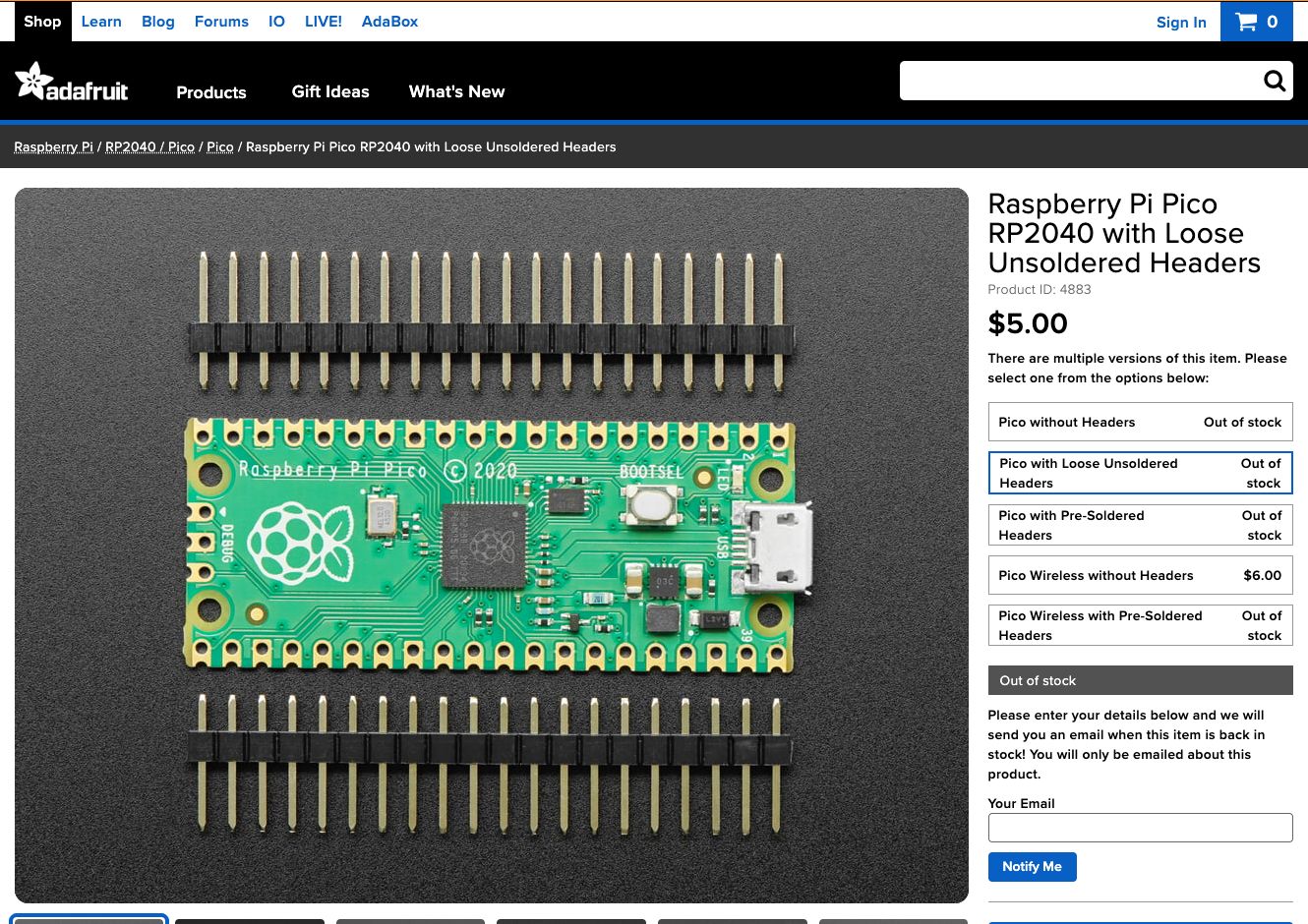
Source: Adafruit product 4883. The selected version is out of stock. The neighboring wireless option has its own product page and identifier.
Here is the checked table from three product pages. We use Adafruit’s visible Product ID as the supplier identifier. Prices below are the displayed numeric amounts; the pages show a dollar symbol without an explicit currency code in the captured product panels, so Currency remains blank pending confirmation.
| Supplier ID | Product / version | Price | Currency | Source | Review status |
|---|---|---|---|---|---|
| 4864 | Raspberry Pi Pico RP2040 — without headers | 4.00 | Product page | Hold: out of stock; confirm currency | |
| 4883 | Raspberry Pi Pico RP2040 — loose unsoldered headers | 5.00 | Product page | Hold: out of stock; confirm currency | |
| 5526 | Raspberry Pi Pico W — wireless, without headers | 6.00 | Product page | In stock; confirm currency |
All three source pages were checked, and the three identifiers are distinct. This sample covers three selected versions, not every option in the supplier’s list. The two unavailable versions stay in the review table as exceptions and are excluded from an orderable-product batch. No cart or store changes were made. Prices and stock can change after capture.
A blank value is useful information: resolve it from a supplier source before preparing an import. Do not substitute a guessed currency or invent a code to make the table look complete.
Before you start
- Pick five products. A small batch lets you check every row by hand. Scale up only after the table is correct.
- List the source URLs in a text file or a first sheet tab. This list is the ground truth for your row count.
- Decide your variant rule. For example: “One row per size and color combination the supplier lists as orderable.”
- Note the expected currency for each supplier so a mismatch stands out.
Method 1: Build it by hand
For a handful of products, the manual method works fine:
- Open the first supplier page and paste its URL into the Source URL column.
- Check every orderable combination of the supplier’s variant options and add one row per combination. Record unavailable combinations separately as exceptions.
- Copy the SKU for each variant. Some suppliers show it only after you select a variant, so select each one before copying.
- Type the price without the symbol and put the currency code in its own column.
- If a value isn’t on the page, leave the cell blank and name the field in Missing fields.
- Repeat for the remaining pages.
A product with four sizes and three colors can have up to twelve combinations. Count the combinations actually offered and orderable; each can have a different SKU.
Method 2: Have Dassi collect it in your browser
Dassi is a browser agent that runs in the Chrome, Edge or Brave you already use. It works with the accounts you are signed into, so it can open supplier portals that require your login. It clicks, navigates and reads pages the way you would, and you watch it work in your own browser.
Paste your URL list and a prompt like this one:
I'm preparing a product table for review. Do not change anything on any
website, submit forms, add to cart or edit any store.

For each URL below, check every orderable combination of variant options.
Produce one row per combination with these columns:
Supplier SKU | Product name | Variant | Price | Currency | Source URL | Missing fields

Rules:
- Copy SKUs exactly as shown. Never create or guess a SKU.
- Price is a plain number with no currency symbol. Put the currency code
  in its own column.
- If a value is not visible on the page, leave the cell blank and list
  the field name in "Missing fields".
- Record all options in "Variant", e.g. "Size: M; Color: Blue".
- Record unavailable combinations separately as exceptions.
- If only a currency symbol is visible, leave Currency blank until the
  currency code is confirmed from a supplier source.
- After the table, report: number of URLs given, number of URLs
  processed, rows per product, total rows, unavailable combinations,
  and any page you could not read.

URLs:
<paste your five URLs here>
Two lines in that prompt do most of the work. “Never create or guess a SKU” keeps unknowns visible. The summary counts at the end give you the first verification check without extra effort.
Once the table looks right, you can save the task as a workflow and run it on demand for the next batch. Saved workflows can also run on a schedule, and each keeps a run history you can review. Scheduled runs need the browser open.
A note on data: Dassi runs the browser actions on your machine, but the page content it reads goes to the AI provider you choose, such as Claude, GPT or Gemini. Keep that in mind for supplier portals with confidential pricing. Pricing starts at $10/month if you bring your own model key, with managed plans that include credits; see dassi.ai for current plans.
Check the table before you use it
Run these checks whether you built the table by hand or with Dassi.
- Count source items against rows. Every URL should appear in the Source URL column at least once. If you gave five URLs and only four appear, one page was skipped or failed.
- Check for duplicate SKUs. In Google Sheets or Excel, add a helper column with
=IF(A2="","",COUNTIF(A:A,A2))and filter for values above 1. This excludes blank SKUs, which belong in the missing-fields review. Inspect repeated codes for a duplicated row or a supplier identifier shared across versions. - Check currencies. Filter the Currency column. Confirm each code against the supplier source. Mixed currencies or a dollar symbol without a confirmed code need review; do not assume a supplier uses only one currency.
- Check variant mapping. For the initial five-product batch, check every product against the live options. Reconcile every orderable combination with a row and every unavailable combination with an exception. Each SKU must belong to the exact combination beside it.
- Review missing fields. Filter for anything other than
none. Decide per row whether to ask the supplier, find the value in a price list, or hold the product back. - Spot-check prices. Open three random source URLs and confirm the price and variant by eye.
A person should still own this review. The agent can collect and format values, but you decide whether a blank SKU is acceptable or a price looks wrong.
What this doesn’t cover
This guide stops at a checked table. Mapping the table into your store’s import format, assigning handles and uploading product photos are separate jobs. For broader copy-paste work between tabs, see The Soul-Crushing Math of Manual Data Entry.
Next step
Pick five supplier products you need to add this month. Install Dassi, paste the prompt above with their URLs, and ask it to leave missing fields blank and make no store changes. Then run the six checks and see which rows are ready for review.